

Testing your application
2 Aufgaben
40 Min.
Anfänger
DevOps
Englisch
Szenario
The Senior System Architect configured the vehicle information list to fetch car models from an external source. During the testing phase, one of the engineers reported that, intermittently, some car makes do not have associated model names. Additionally, stakeholders are concerned about application performance and require that the vehicle information list is generated within 200 milliseconds.
To meet these requirements, the Deployment Manager has asked you to:
- Create unit tests to test the vehicle information list and confirm the model list generates in the time threshold.
- Run a Test Coverage session using the unit tests and report the results.
The following table provides the credentials you need to complete the challenge.
| Role | User name | Password |
|---|---|---|
| Application Developer | tester@gogoroad | pega123! |
Hinweis: Your practice environment may support the completion of multiple challenges. As a result, the configuration shown in the challenge walkthrough may not match your environment exactly.
Challenge-Schritte
Genaue Übungsschritte
1 Run the List Vehicle information Data Page and create a unit test
- In the Pega instance for the challenge, enter the following credentials:
- In the User name field, enter tester@gogoroad.
- In the Password field, enter pega123!.
- In the navigation pane of Dev Studio, click Data types to open the Data Explorer.
- Expand Vehicle information, and then click List Vehicle information to edit the D_VehicleinformationList Data Page.
- In the upper right, click Actions > Run. The Run Data Page window is displayed.
- For the make parameter, in the Value field, enter Tesla as the test value.
- For the modelyear parameter, in the Value field, enter 2017 as the test value.
- In the upper right, click Run to test the Data Page.
- Expand the pxResults property and confirm that the property includes three results pages.

- In the upper right, click Convert to test to close the Run Data Page window and create a test case record for the Data Page that uses your test results.
 Hinweis: The parameter values entered in the Run Data Page window are automatically populated in the Edit Test Case window.
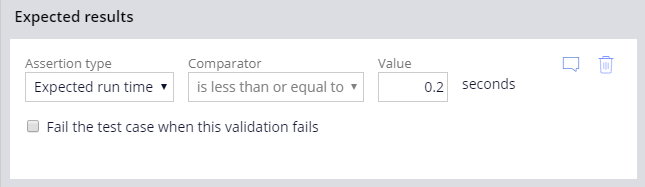
- In the Edit Test Case window, in the Expected results section, verify that the Assertion type list value is Expected run time.
- In the Value field, enter 0.2 to set the passing threshold for the unit test to 0.2 seconds.
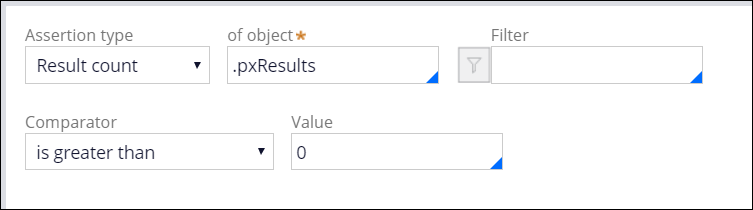
- In the second Assertion type list, select Result count.
- In the of object field, enter or select .pxResults.
- In the Comparator list, select is greater than.
- In the Value field, enter 0. The unit test validates that at least 1 record is returned from the Data Page when the make parameter value is Tesla.
- Click Save.
- In the Label field, enter VehicleInformationList_Tesla to name the test case record.
- In the Add to Ruleset and version lists, verify that the highest Ruleset version is selected.

- Click Submit to create the unit test.
2 Create unit tests for different vehicle makes
- In the VehicleInformationList_Tesla test case, to the right of Save, click the down arrow.

- Click Save as.
- In the Label field, enter VehicleInformationList_Ford.
- Click Create and open to save a copy of the test case.
- To the right of Class, click the Gear icon to open the Edit details window and update the rule parameters.

- In the Parameter(s) sent section, in the make field, enter Ford.

- Click Submit to close the Edit details window.
- In the Description section, click the Edit icon to edit the vehicle make.
- In the parameters area, enter Ford to replace the Tesla value for <make: Tesla>.

- Click Save to complete the configuration of the unit test.
- Repeat steps 1-10 to use VehicleInformationList_Saturn as the test case label and Saturn as the make parameter.

In dieser Challenge üben Sie, was Sie in den folgenden Modulen gelernt haben:
In der folgenden Mission verfügbar:
Wenn Probleme mit den Lerninhalten auftreten, lesen Sie bitte die Pega Academy Support FAQs.
Möchten Sie uns dabei helfen, diesen Inhalt zu verbessern?