
Configuring rules to improve report performance
A report definition (and its Obj-* methods) is just a query. Pega Platform™ constructs and optimizes queries based on parameters defined in the application Rule. Then, Pega Platform delivers the query results to a Clipboard Page, which can be displayed to your users or used for other purposes, such as running an agent on the result set.
The same principles that you use in tuning a database query can be applied to designing reports for performance: you can configure which report definition and Obj-* methods to use; you can apply techniques at the database level, and you can choose to take an entirely different approach to gathering data, such as using robotic automation or Elasticsearch.
The goal is to return data to your users in the most efficient way possible and minimize impact on other users.
The following techniques discuss best practices for configuring Rules within the application:
Use Data Pages whenever possible
The best approach to optimizing your report is to avoid using report definitions as a source for the user interface. Data Pages are always efficient if the same data needs to be reused. Design a refresh strategy that retrieves data only when required. Use node-scoped pages for static data whenever possible.
Paginate the results
Paginating results allows you to return groups of data at a time. Returning large groups of records can make it difficult for users to find the information for which they are looking. For example, a report that returns 50 records at a time might be too much information for users to sift through. Select the Enable Paging option in the report definition, and then specify the page size.
For more information about configuring paging in reports, see Report Viewer.
Optimize properties
If you expect to use a property in your selection criteria, optimize that property. Optimizing a property creates a column in the database table, which you can index as needed.
For more information, see Optimizing database properties.
Use declare indexes
With declare indexes, you can expose embedded page list data. For example, the application stores Work-Party instances in a pr_index_workparty table. As a result, you can write a report definition that joins work object data to work party data instead of extracting the work party data from the pzpvstream column (the BLOB), which can be resource-intensive.
For more information, see Using declarative indexes to improve reporting.
Use a reports database
To reduce the impact of queries on the production database, you can run reports against a reports database (also known as an alternate database). This approach offloads demand on the production database to a replicated database.
For more information about using a reports database, see Specifying a data source for reports.
Avoid outer joins
Selecting Include all rows on the Data Access tab of the report definition can also be resource-intensive. This option causes the system to use an outer join for the report, including all instances of one class, even if they have no matching instances in the other class. If possible, use the Only include matching rows option.
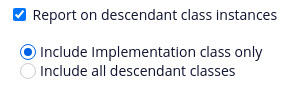
Report on descendant class instances
By default, Pega includes pxobjclass as the current class on the SQL query as "PC0"."pxobjclass" LIKE ?
This approach is useful for including specific classes from the workpool or report created on the Framework layer. If you use the Report on descendant class instances option, you can include either only the implementation class or all descendant classes (all framework and implementation classes), as shown in the following figure:
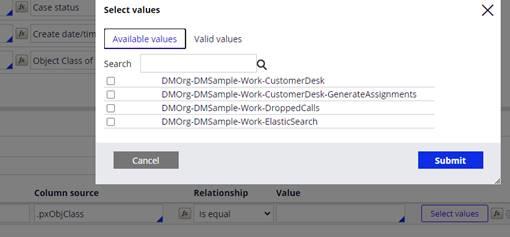
When you change the filter condition on .pxObjClass to
"PC0"."pxobjclass" IN (? , ? , ? , ? , ? , ? , ? , ? ), where ? depends on the number of descendant classes, you can select a specific subset of descendant classes to include or exclude by adding a filter condition on .pxObjClass.The following figure shows the Select values window, with only applicable descendant classes instead of all descendant classes, when the filter criteria are defined on the .pxObjClass column. You open the Select values window by clicking Select values on the column in which you want to define the filter criteria.
補足: The Include all descendant classes option applies to the Applies to class. It does not apply to join classes.
注: Performance can suffer unless all relevant database columns are indexed in all included class tables.
Check your knowledge with the following interaction:
このトピックは、下記のモジュールにも含まれています。
トレーニングを実施中に問題が発生した場合は、Pega Academy Support FAQsをご確認ください。