
Configuring a form View
2 Tarefas
10 min
Beginner
User Experience
Constellation
Inglês
Scenario
After a request for roadside assistance is approved, the system creates a Service Case. CSRs need the ability to easily review information associated with the Assistance Request Case.
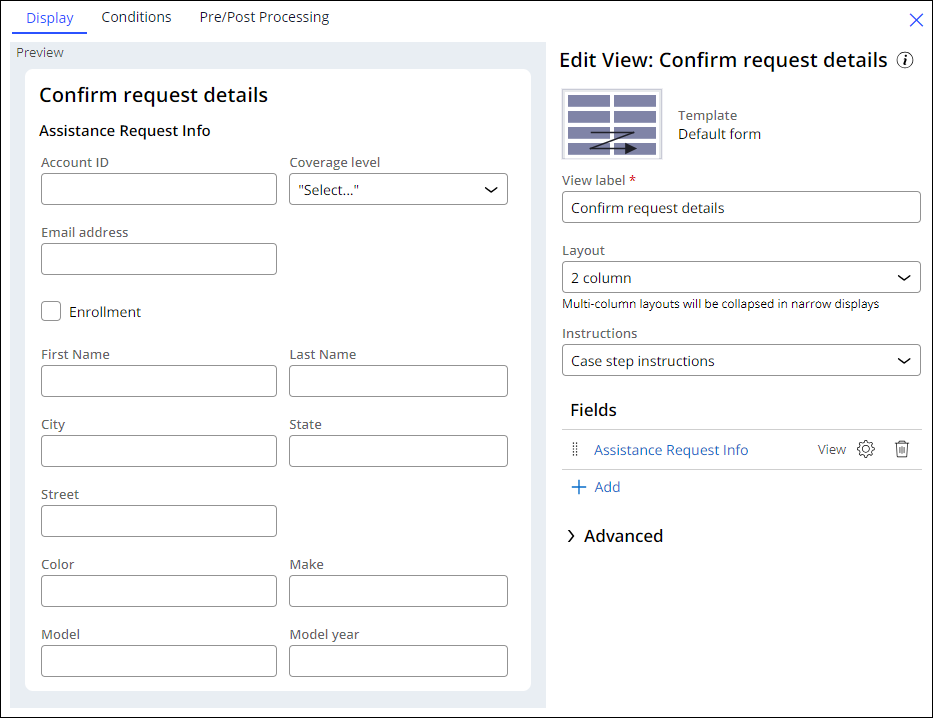
The Confirm request details View is configured with a two-column layout. The configuration of the View overrides Case Step instructions. The Assistance Request Info heading is not displayed.
Nota: The framework of this challenge uses the Constellation architecture of Pega Platform™.
The following table provides the credentials you need to complete the challenge:
| Role | User name | Password |
|---|---|---|
| Application Development | author@gogoroad | pega123! |
Nota: Your practice environment may support the completion of multiple challenges. As a result, the configuration shown in the challenge walkthrough may not match your environment exactly.
Challenge Walkthrough
Detailed Tasks
1 Edit the Confirm request details View
- In the Pega instance for the challenge, enter the following credentials:
- In the User name field, enter author@gogoroad.
- In the Password field, enter pega123!.
- In the navigation pane of App Studio, click Case Types > Service.
- Click the Confirm request details Step to display the contextual properties pane on the right.
- In the contextual properties pane, click Configure View to configure the Confirm request details View.
- In the Layout list, select 2 column to change the display from one column to two columns.
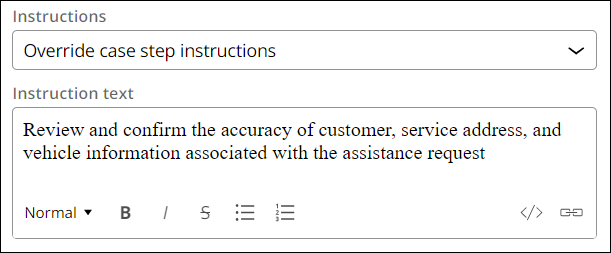
- In the Instructions list, select Override Case Step instructions.
- In the Instruction text field, enter Review and confirm the accuracy of customer, service address, and vehicle information associated with the assistance request to override Case Step instructions.
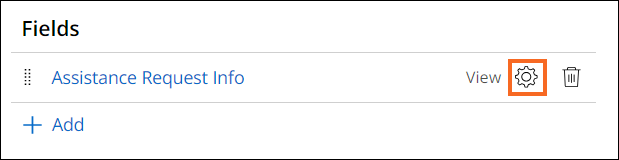
- To the right of Assistance Request Info, click Configure.
- In the Configure View: Assistance Request Info dialog box, clear the Show heading checkbox.
- Click Save to dismiss the Configure View: Assistance Request Info dialog box.
2 Reorder fields in the Service address View
- Click Assistance Request Info to display the Edit View: Assistance Request Info window.
- Click Assistance Request Info - Service address to display the Edit View: Assistance Request Info - Service address window.
- In Region A, drag the Street field and drop it in the first position in Region A.
Nota: This is a shared View. Changes that you make to shared Views affect other Views that reuse the shared View.
- Click Submit to finish configuring the Confirm request details View and Service address View.
- Click Save to save the changes to the Service Case.
Este Desafio serve para praticar o que você aprendeu nos seguintes Módulo:
Disponível na seguinte missão:
If you are having problems with your training, please review the Pega Academy Support FAQs.
Quer nos ajudar a melhorar esse conteúdo?