
Importing departments and users
Importing departments and users
To streamline the initial configuration of the organization hierarchy and users, you can import departments and users in Pega Robot Manager™. You can either create a CSV file from scratch or edit a downloadable CSV file template from Pega Robot Manager.
You import departments and users for the initial creation of organizational hierarchy only. You cannot update or edit the existing elements of the hierarchy. In cases of subsequent imports, Pega Robot Manager imports only new entries and ignores the rest.
Note: Before importing users, create the organization hierarchy.
Ensure that a Pega Robot Manager administrator with the User Admin role manually maintains the hierarchy and users.
Importing departments
- On the Pega Robot Manager dashboard, click Users to display the Users landing page.
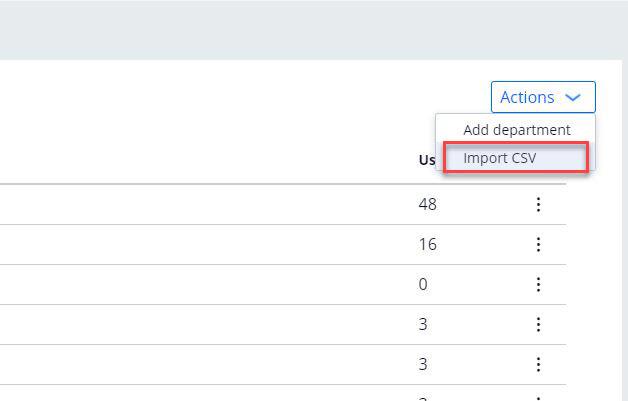
- On the the Users landing page, on the Departments tab, on the Actionsmenu, click Import CSV.
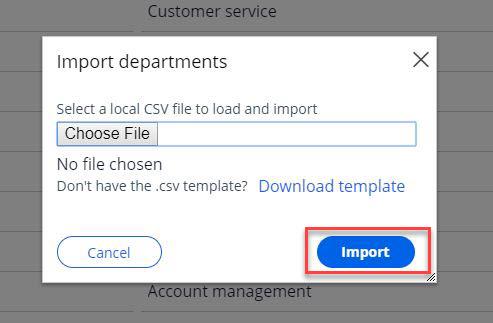
- In the Import departments window, click Choose File.
- Select the CSV file, and then click Import.

- Department name
- Department description
- Parent path
Note: For the top-level department, the Parent path column is left blank. An exclamation mark denotes a subdepartment. For example, BankerProCorporation!Customer service indicates the Customer service subdepartment of BankerProCorporation.
Importing users
- On the Pega Robot Manager dashboard, click Users to display the Users landing page.
- On the Users landing page, on the People tab, on the Actions menu, click Import users.
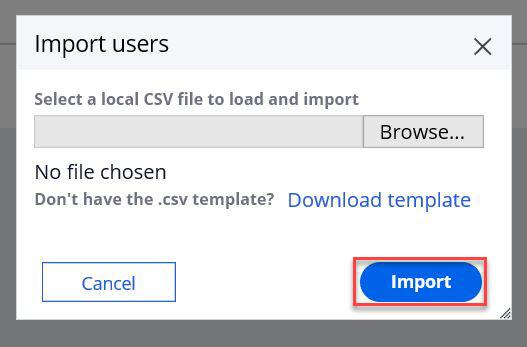
- In the Import users window, click Choose File.
- Select the CSV file, and then click Import.
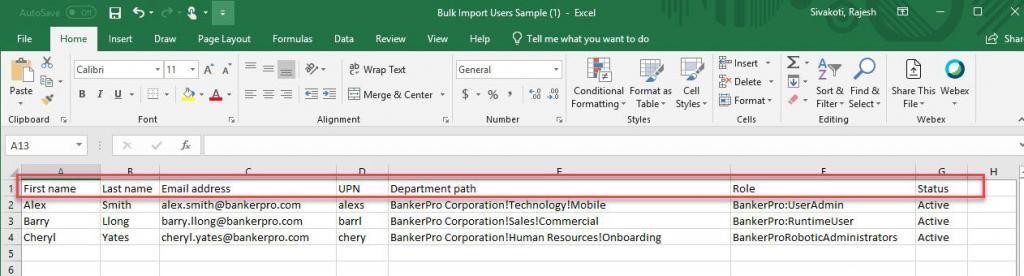
- First name
- Last name
- Email address (if users log in to the Pega Robot Manager with basic authentication)
- UPN (if users log in to Pega Robot Manager with SSO authentication; UPN is for RuntimeUsers)
- Department path
- Role
- Status
Note: Use an exclamation mark to denote that a user belongs to a subdepartment, for example, BankerProCorporation!Customer service!Corporate accounts. You cannot assign a user to the top two departments in the organizational hierarchy.
If you log in to Pega Robot Manager with basic authentication, the system generates the default password Pega. Change the password by clicking Forgot password? on the Pega Robot Manager login page.
If you are having problems with your training, please review the Pega Academy Support FAQs.
Want to help us improve this content?