
Routing work to users for BAs
2 Tasks
15 mins
Beginner
Case Management
English
Scenario
In a DCO session, GoGoRoad stakeholders confirmed that assignments related to assistance requests often get lost in the handoff between different employees, and between different departments. As a Pega Business Architect working with GoGoRoad SMEs, you have determined that two assignments in particular can benefit from Pega's automated routing features. The assignments are Validate request, Select services performed, and Review services Assignments. Business requirements have been established to address both needs.
User story
As a GoGoRoad Manager, I want the Validate request Assignment to to be routed directly to me so that I can quickly evaluate the request for assistance.
As a GoGoRoad CSR, I want the Select services performed Step to come directly to the CSR Work Queue so that the next available CSR can complete the task, moving the process along for the customer.
As a GoGoRoad CSR, I want the Review services Assignment to be routed to the CSR Work Queue to the final review can be conducted efficiently, and the customer invoiced for payment.
Technical notes documented by the System Architect
- The Validate request Step must be routed to the Manager of GoGoRoad's Assistance Request department.
- The Review services Step must be routed to the CSR Work Queue.
The following table provides the credentials you need to complete the challenge:
| Role | User name | Password |
|---|---|---|
| Business Architect | author@gogoroad | pega123! |
Challenge Walkthrough
Detailed Tasks
1 Configure routing for the Validate request Step
- In the Pega instance for the challenge, enter the following credentials:
- In the User name field, enter author@gogoroad.
- In the Password field, enter pega123!.
- In the navigation pane of App Studio, click Case Types > Assistance Request to access the Assistance Request Case Type,
- In the Assistance Request Case Life Cycle, click on the Step.
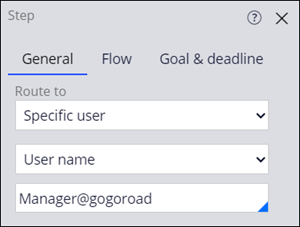
- In the contextual properties pane to the right, in the Route To field, select .
- In the second Route to field, select .
- In the third Route to field, select or enter Manager@gogoroad.
2 Configure routing for the Select services performed and Review Services Step
- In the Assistance Request Case Life Cycle, click on the Step.
- In the contextual properties pane to the right, on the General tab, in the Route To field, select .
- In the second Route to field, select Create Work Queue.
- In the Work Queue name field, enter CSR, then click OK.
- In the Assistance Request Case Life Cycle, click on the Step.
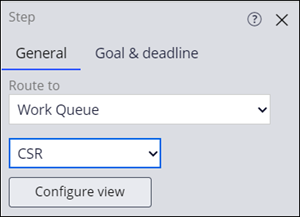
- In the contextual properties pane to the right, on the General tab, in Route To field, select .
- In the second Route to field, select CSR.
- In the upper-right corner, click .
If you are having problems with your training, please review the Pega Academy Support FAQs.
Want to help us improve this content?