
Validating data against business logic
1 Tarea
10 minutos
Principiante
Data Integration
Inglés
Escenario
Customers with standard coverage use a credit card to pay for services performed by a service provider. To ensure that credit card transactions are processed correctly, stakeholders have identified that the expiration date must be in the future. Expired cards are rejected, and the process cannot continue until the user provides a valid expiration date.
The following table provides the credentials you need to complete the challenge.
| Role | User name | Password |
|---|---|---|
| Application Developer | author@gogoroad | pega123! |
Nota: Your practice environment may support the completion of multiple challenges. As a result, the configuration shown in the challenge walkthrough may not match your environment exactly.
Recorrido del Reto
Tareas detalladas
1 Configure a view to validate the expiration date is in the future
- In the Pega instance for the challenge, enter the following credentials:
- In the User name field, enter author@gogoroad.
- In the Password field, enter pega123!.
- In the navigation pane of App Studio, click Case types > Assistance Request to open the Assistance Request case type.
- Click the Enter payment information step.
- In the contextual properties pane on the right, click .
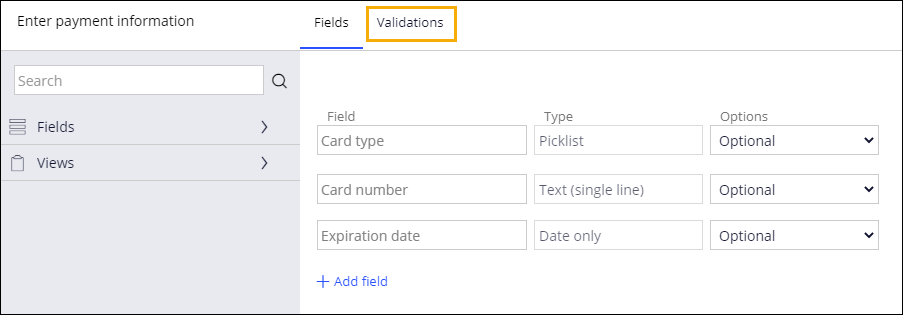
- In the Enter payment information view, click the Validations tab to add a validation condition to the step.
- In the Validate fields based on these conditions section, click to make the condition entry fields available.
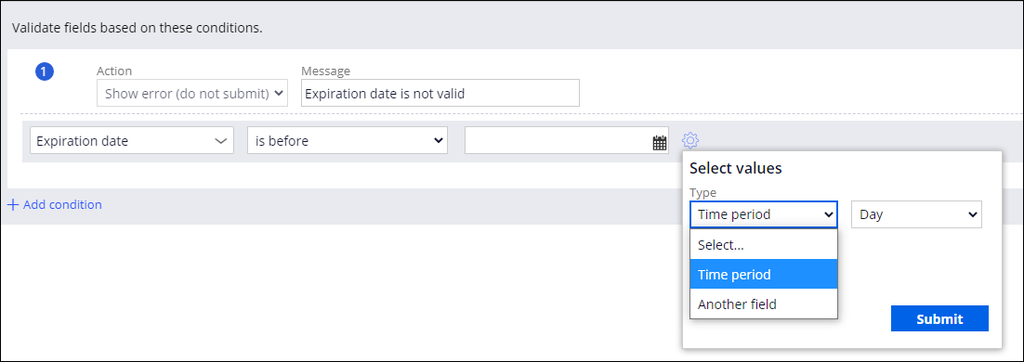
- In the Message field, enter Expiration date is not valid as the message to display if the user enters an invalid expiration date.
- In the Select list, select Fields > Payment information > Expiration date.
- In the Comparator list, select is before.
- On the right, click the icon to open the Select values dialog box to define additional options for the condition.
-
In the Select values dialog box, in the Type list, select Time period to match the fields as shown in the following image.

- In the Select values dialog box, click .
- In the Enter payment information view, click .
Este Reto es para practicar lo aprendido en el siguiente Módulo:
If you are having problems with your training, please review the Pega Academy Support FAQs.
¿Quiere ayudarnos a mejorar este contenido?