Validating data against business logic
Archived
2 Tarefas
10 min
Beginner
Inglês
Scenario
Customers with standard coverage use a credit card to pay for services performed by a service provider. To ensure that credit card transactions are processed correctly, stakeholders have identified that the expiration date must be in the future. Expired cards are rejected, and the process cannot continue until the user provides a valid expiration date.
The following table provides the credentials you need to complete the challenge.
| Role | Operator ID | Password |
|---|---|---|
| Application Developer | author@gogoroad | pega123! |
Challenge Walkthrough
Detailed Tasks
1 Configure a view to validate the expiration date is in the future
- In App Studio, from the left navigation pane, click Case types > Assistance Request to open the Assistance request case type.
- Click the Enter payment information step.
- In the contextual properties pane on the right, click .
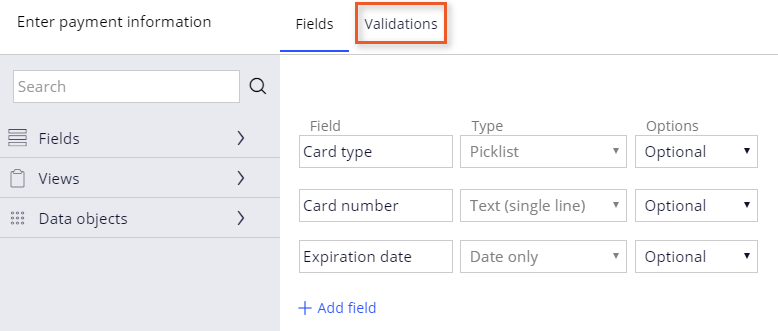
- In the Enter payment information view, click the Validations tab to add a validation condition to the step.
- Under No validation conditions present, click to make the condition entry fields available.
- In the Message field, enter Expiration date is not valid. as the message to display if the user enters an invalid expiration date.
- In the Select drop-down, select PaymentInformation > Expiration date.
- In the Comparator drop-down, select is before.
- To the right, click to define additional options for the condition.
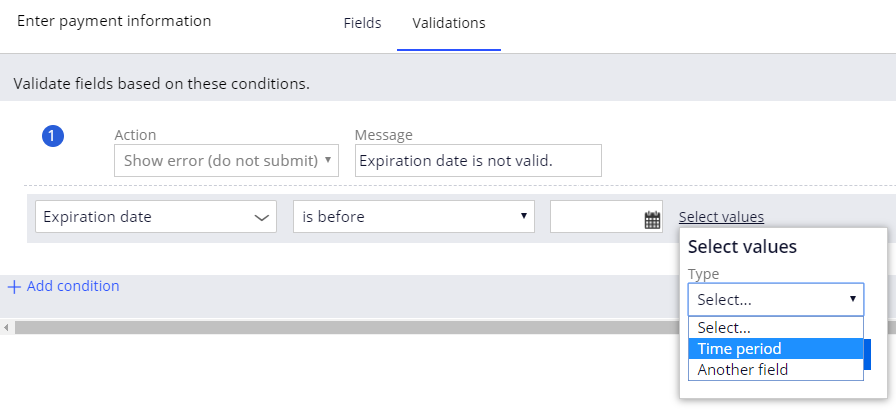
- From the Type drop-down, select Time period. The fields should match the image below.
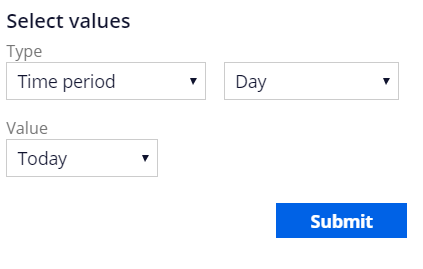
- In the Select values dialog box, click .
- In the Enter payment information view, click .
2 Confirm your work
- From the Assistance request case, click .
- Advance the case to the Enter payment information step.
- In the Expiration date field, enter a date in the past.
- On the Enter payment information form, click to attempt to advance the case. Verify that the application prevents the case type from advancing and displays the Expiration date is not valid error.
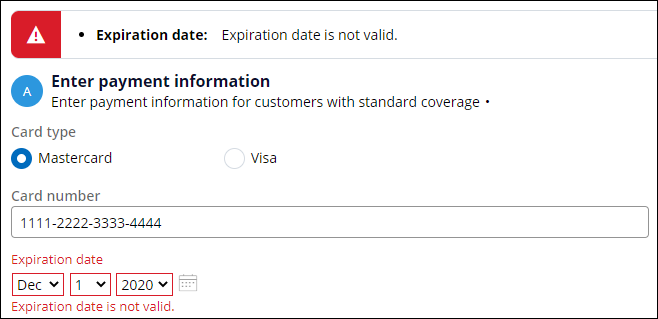
- In the Payment information Expiration date field, enter a date in the future.
- Click and confirm that the case advances to the next stage.