
Creating Personas and Channels for BAs
4 Tasks
20 mins
Beginner
Case Management
User Experience
Constellation
English
Scenario
GoGoRoad provides roadside assistance services through contracted vendors. To ensure customer satisfaction and service consistency across service vendors, auditors review common service requests (including unlocking vehicles, tire repairs, and battery charges). As the Director of Vendor Management, create a new Auditor Persona and provide application access for the new auditor. The new auditor Persona should access a unique interface.
As a Business Architect, you work with SMEs to determine the different Personas, or broad user groups, that will interact with your application. You will also work with SMEs to identify the unique user interfaces, or Channels, that those Personas utilize to access the application.
User story
As the GoGoRoad Auditor, I want a dedicated Channel interface to access information related to the assistance request Process and the contracted service providers.
Technical notes documented by the System Architect
- The GoGoRoad Application has an Auditor channel and an Auditor Persona.
- The Auditor Persona has access to the Auditor Channel.
- The GoGoRoad Application has a user with access to run reports and view the audit history only for Assistance Request and Service Case Types.
- The Auditor Channel is based on the standard Work portal and includes an Assistance Request landing page that includes the Case ID, Label, Create date/time, Create operator name, Work Status and Service type columns.
The following table provides the credentials you need to complete the challenge:
| Role | User name | Password |
|---|---|---|
| Business Architect | author@gogoroad | pega123! |
| Auditor | auditor@gogoroad | pega123! |
Note: This challenge does not have a demo video. Please refer to the Detailed Tasks for step-by-step instructions to complete the challenge.
Detailed Tasks
1 Create the Auditor Persona
- In the Pega instance for the challenge, enter the following credentials:
- In the User name field, enter author@gogoroad.
- In the Password field, enter pega123!.
- In the navigation pane of App Studio, click Users > User management to display the existing Personas.
- On the Personas tab, in the upper-right corner, click Add to create a new Persona.
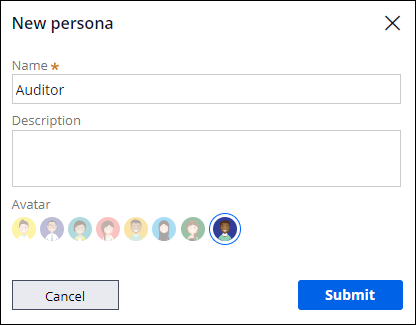
- In the Name field, enter Auditor, and then click .
2 Assign access for the Auditor Persona
-
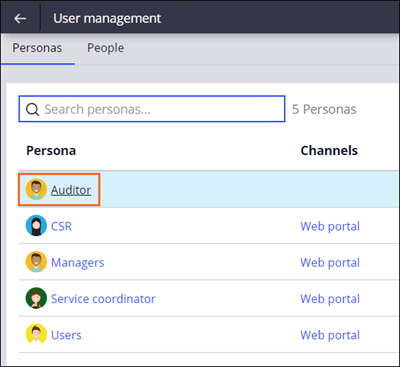
On the User management page, click Auditor.
- On the Case Types tab, in the Assistance Request row, click the Configure access icon.
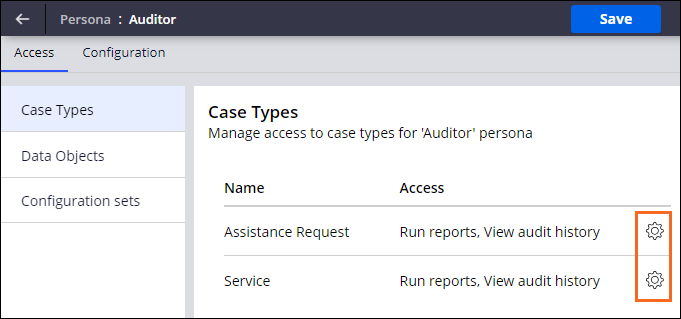
- Click Open and Modify to remove access to both actions, and then click Submit.
- Repeat steps 2 and 3 on the Service Case Type to remove access to both actions.
- In the upper-right corner, click Save.
3 Create a user account for the Auditor
- Click the Back to previous page icon to display the User management page.
- Click the People tab to display the list of existing users and associated roles.
- Click Invite people to your application.
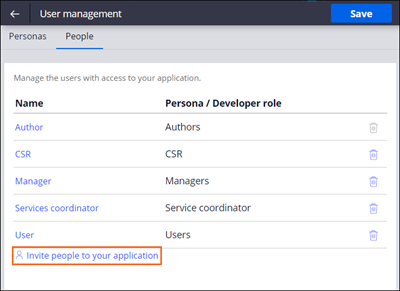
- In the window, in the text box field, enter [email protected].
- In the drop-down list on the right, select Auditor, and then click Add.
 Note: You can send a Welcome email to the user by clicking Send invitation.
 - Copy the custom-generated password to a text file for later use.
- Close the Add users to application window.
- Click to save your work.
4 Create a Channel interface for the auditor
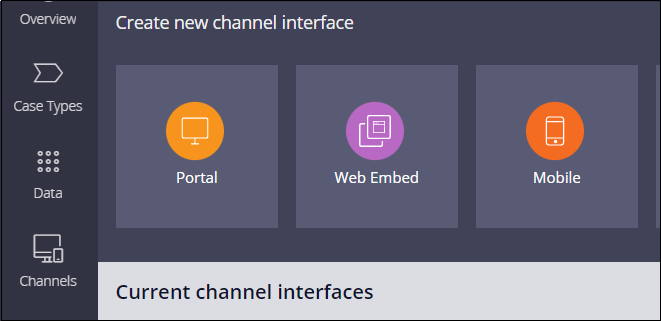
- In the navigation pane of App Studio, click Channels to display the current Channel interfaces.
- In the section, click Portal to display the New portal dialog box.
- In the Name field, enter Auditor.
- In the Description field, enter Custom Portal for the GoGoRoad auditor.
- In the section, click .
- In the New Portal dialog box, click Submit.

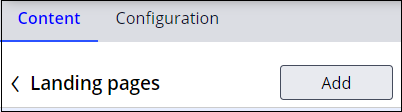
- On the Content tab, click Landing pages.
- In Landing pages page, click to display the dialog box.
- In the Name field, enter Assistance Request.
- In the Template list, select Default page.
- Click .
- In the Edit landing page: Assistance Request section, in the Layout list, confirm One column is selected.
- In , click Add > Views > Create View to add a new View to the landing page.
- In the dialog box, in the Name field, enter Assistance Request List, and then click Submit.
- In the , verify that the Name and Heading fields are set to Assistance Request List.
- In the Data page field dropdown, select Assistance Request list.
- In the tab, in thesection, click .
- Select the Case ID, Label, Create datetime, Create operator name, Work Status and Service type fields, and then click .
- Click Back to return to the section.

- Click the left arrow next to to go back to the page.
- On the Main navigation page, click Add item and select Assistance Request.
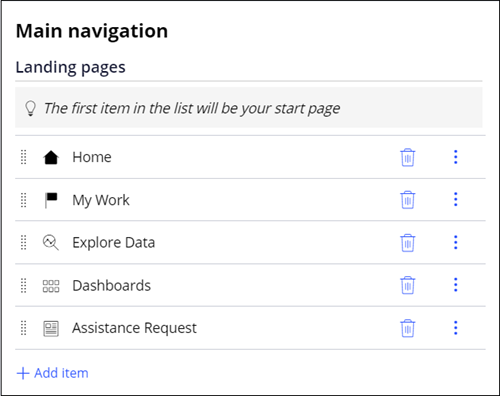
- To the right of the item, click the icon to remove the item from the Landing pages menu.
- Repeat step 22 to remove the item from the menu.
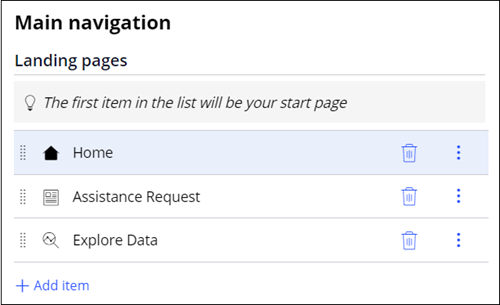
- In the menu section, click and drag the items into the following order: Home, Assistance Request, and Explore Data.
- Click the Configuration tab.
- In the section, click Add.
- Click Auditor to allow the auditor to access the Auditor Portal.
- In the Channel header list, select Application name + Channel name.

- Optional: In the Theme list, select one of the out-of-the-box themes.
- In the upper-right corner, click Save.
This Challenge is to practice what you learned in the following Module:
Available in the following mission:
If you are having problems with your training, please review the Pega Academy Support FAQs.
Want to help us improve this content?