

Creating users and roles
4 Aufgaben
10 Min.
Anfänger
Case Management
Security
Englisch
Szenario
GoGoRoad provides roadside assistance services through contracted vendors. To ensure customer satisfaction and service consistency across vendors, auditors review common service requests (including unlock vehicle, tire repair, and battery charge). As the Director of Vendor Management, create a new persona, and provide application access for the new auditor. The new auditor persona should access a unique interface.
The following table provides the credentials you need to complete the challenge.
| Role | User name | Password |
|---|---|---|
| Application Developer | author@gogoroad | pega123! |
| Auditor | auditor@gogoroad | pega123! |
Hinweis: Your practice environment may support the completion of multiple challenges. As a result, the configuration shown in the challenge walkthrough may not match your environment exactly.
Challenge-Schritte
Genaue Übungsschritte
1 Create the Auditor persona
- In the Pega instance for the challenge, enter the following credentials:
- In the User name field, enter author@gogoroad.
- In the Password field, enter pega123!.
- In the App Studio navigation pane, click Users > User management to display the existing personas.
- Under the Personas tab, In the upper-right corner, click Add to add a new persona.
- In the Persona name field, enter Auditor.
- Click .
2 Assign access for the Auditor persona
-
Click the Portals & pages tab to display the portal and page access for all personas.
-
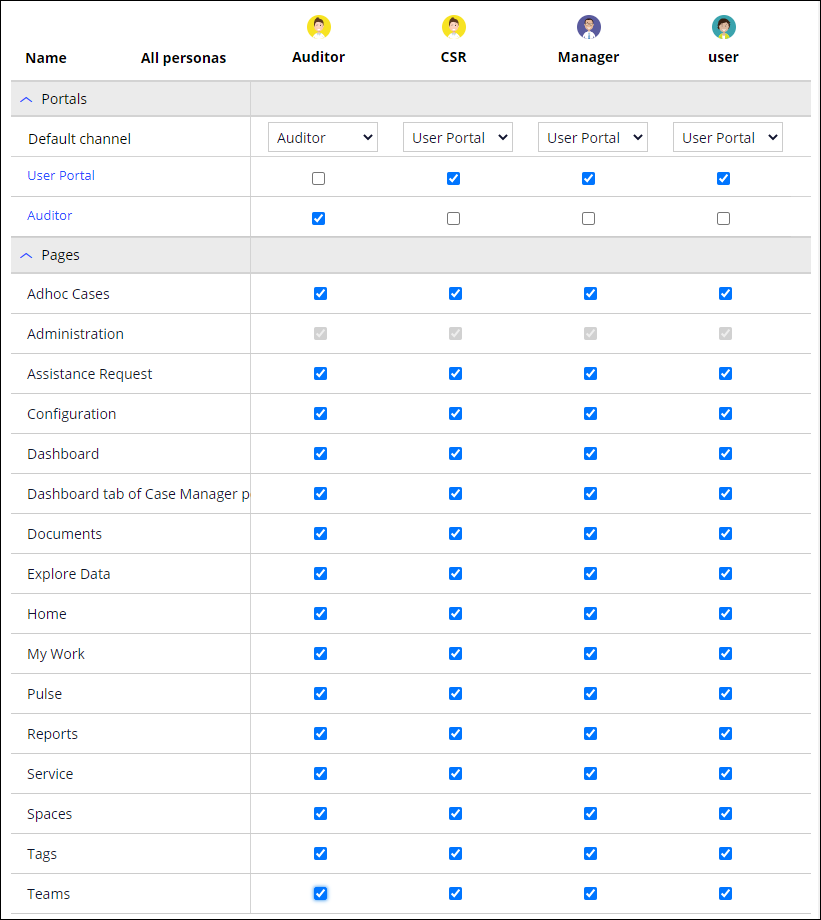
In the Auditor persona, in the Default channel list, select Auditor to restrict access to only the Auditor portal. The Auditor check box is automatically selected.
- Under Pages, select all check boxes for the Auditor persona, as shown in the following image, to ensure the Auditor has access to all available pages
- In the upper right, click Save.
3 Create a user account for the auditor
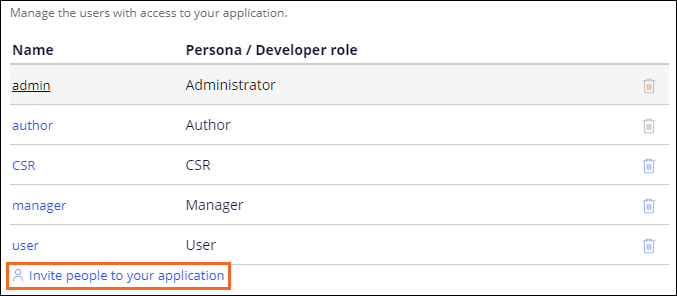
- Click the People tab to display the existing users and associated roles.
- Click Invite people to your application.
- In the Add users to application window, in the text box field, enter auditor@gogoroad.
- In the drop-down list on the right, select Auditor.
-
Click Add.
 Hinweis: You can send a Welcome email to the user by clicking Send invitation.
 - Copy the custom generated password to a text file for later use.
- Close the Add users to application window.
4 Configure the Auditor channel to display the channel name
- In the App Studio navigation pane, click Channels to display the channel interfaces for the current application.
- Click Auditor to edit the custom Auditor channel.
- Click Configuration to display the configuration options.
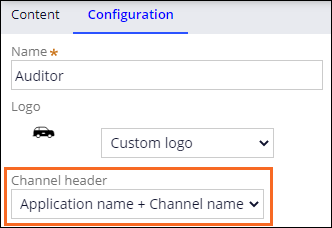
- In the Channel header list, select Application name + Channel name.
- Click Save.
Wenn Probleme mit den Lerninhalten auftreten, lesen Sie bitte die Pega Academy Support FAQs.
Möchten Sie uns dabei helfen, diesen Inhalt zu verbessern?