
Creating work status values
2 Tasks
10 mins
Beginner
Data Integration
English
Scenario
GoGoRoad stakeholders want a way to quickly differentiate Assistance Request cases during the Service and Resolution stages. To clarify reporting on Assistance Request cases, stakeholders want to apply a unique, custom status to assistance request cases during the Select service provider step of the Service stage and the Review service summary step of the Resolution stage.
Create two new work status values for Assistance Request cases and apply them to the following steps in the Service and Resolution stages:
| Step | Status value |
|---|---|
| Select service provider | Open-ServiceProviderSelection |
| Review service summary | Pending-ServicesReview |
The following table provides the credentials that you need to complete the challenge.
| Role | User name | Password |
|---|---|---|
| Application Developer | author@gogoroad | pega123! |
Note: Your practice environment may support the completion of multiple challenges. As a result, the configuration shown in the challenge walkthrough may not match your environment exactly.
Challenge Walkthrough
Detailed Tasks
1 Create the new work status values
- In the navigation pane of Dev Studio, click App to open the App Explorer.
- In the App Explorer, expand the AssistanceRequest category, right-click Data Model, and then select Create > Field Value to create a custom status value.
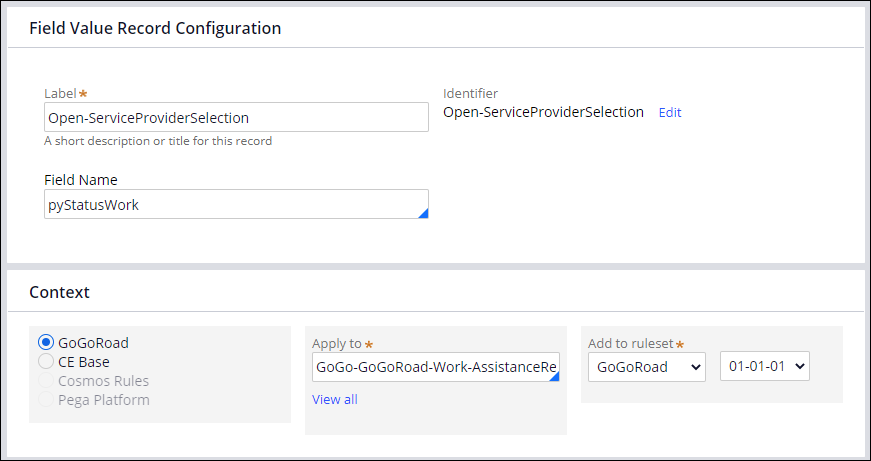
- In the Label field, enter Open-ServiceProviderSelection as the custom status value.
- In the Field Name field, enter pyStatusWork.
- Click Create and open.
- On the History tab, in the Description field, enter the following text as the purpose of the field value: For Assistance request cases that have reached service provider selection.
Tip: The descriptions can help you decide whether to reuse an existing work status or create a new one.
- Click Save.
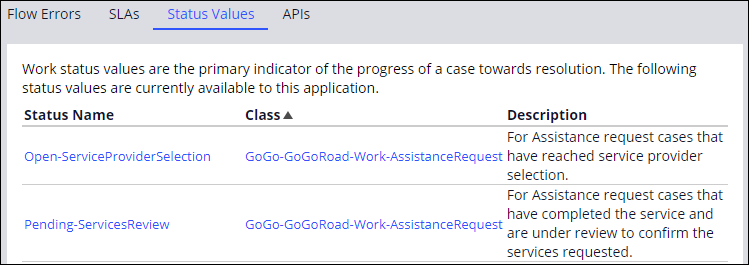
- Repeat steps 2-7 to create a new custom status with the details in the following table.
Status value Class Purpose Pending-ServicesReview GoGo-GoGoRoad-Work-AssistanceRequest For Assistance request cases that have completed the service and are under review to confirm the services requested. - In Dev Studio, click Configure > Case Management > Processes > Status Values to open the Status Values landing page. The array displays the status values and descriptions.
2 Apply the new work status values to the Assistance Request case type
- Open the Assistance Request case life cycle.
- In the Service stage, select the Select service provider step.
- On the General tab, in the Set case status field, enter or select Open-ServiceProviderSelection.

- Repeat steps 1-3 for step Review service summary to set case status Pending-ServicesReview .
- Save your work.
If you are having problems with your training, please review the Pega Academy Support FAQs.
Want to help us improve this content?