
Escalating late work
Archived
1 Tarea
10 minutos
Principiante
Case Management
Inglés
Escenario
InsCorp is launching a roadside assistance service as a coverage option for automobile insurance policies. Customers initiate Assistance Request cases. After the service is completed, a customer service representative must review a summary of the service provided within 15 minutes and must complete the review within 30 minutes; otherwise, the assignment is considered late. To encourage assignment completion, configure the passed deadline interval to increase the urgency of the assignment by ten every 15 minutes after the Deadline interval elapses until the urgency reaches a maximum of 100.
Tip: For this exercise, you can adjust the goal, deadline, and passed deadline intervals to shorter durations.
The following table provides the credentials you need to complete the challenge.
| Role | User name | Password |
|---|---|---|
| Application Developer | author@gogoroad | pega123! |
Nota: Your practice environment may support the completion of multiple challenges. As a result, the configuration shown in the challenge walkthrough may not match your environment exactly.
Recorrido del Reto
Tareas detalladas
1 Add a passed deadline interval to the service level
- In the navigation pane of App Studio, click Case types > Assistance Request to open the Assistance Request case type.
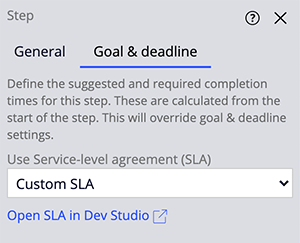
- Click the Review service summary step.
- In the properties pane, click the Goal & deadline tab.
- Click Open SLA to open the service-level agreement (SLA) in Dev Studio.
- On the service level agreement, scroll down to locate the Passed deadline area of the record.
- In the Limit passed deadline events to field, enter 6 to repeat the interval until the urgency reaches 100.
- In the Mins field, enter 15 to set the passed deadline interval to 15 minutes.
- In the Amount to increase urgency field, enter 10 to increase the urgency of the assignment by 10 each time the interval elapses.
- Click Select Action. The Perform Action drop-down is displayed.
- From the Perform Action drop-down, select Notify Manager to send a notification to the manager of the assigned case worker each time the passed deadline interval lapses.

- Click Save to save the SLA.
Nota: After you add a passed deadline interval to an SLA, you can no longer configure the goal and deadline from the case type. Instead, Pega Platform™ prompts you to open the SLA rule to view and configure the SLA.