
Enforcing Service-Level Agreements
1 Task
15 mins
Beginner
Case Management
Constellation
Inglese
Scenario
You are developing an application MyTown311 to capture and manage requests for city services. Ensure that service request repairs are scheduled promptly by adding a goal and deadline to the Schedule repair Assignment.
Note: The framework of this challenge uses the Constellation architecture of Pega Platform™. To practice this challenge on the Traditional UI architecture, see the Enforcing Service-Level Agreements version 8.7 challenge.
The following table provides the credentials you need to complete the challenge.
| Role | User name | Password |
|---|---|---|
| Application Developer | author@mytown | pega123! |
Note: Your practice environment may support the completion of multiple challenges. As a result, the configuration shown in the challenge walkthrough may not match your environment exactly.
Challenge Walkthrough
Detailed Tasks
1 Configure a Service-Level Agreement for the Schedule repair Step
- In the Pega instance for the challenge, enter the following credentials:
- In the User name field, enter author@mytown.
- In the Password field, enter pega123!.
- Click Case Types > Service Request to display the Case Life Cycle.
- Click the Schedule repair Step to display the configuration pane on the right.
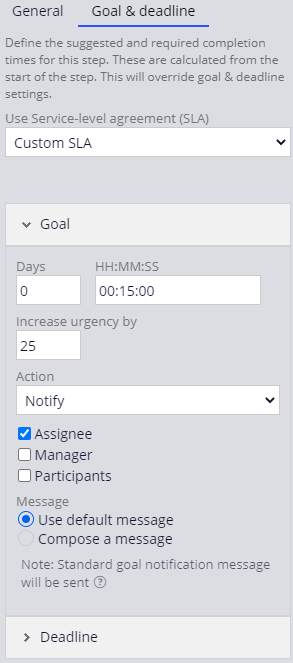
- In the configuration pane, click the Goal & deadline tab.
- From the Use Service-Level Agreement (SLA) list, select Custom SLA to display the SLA configuration settings.
- Under Goal, in the Days field, enter 0.
- In the HH:MM:SS field, enter 00:15:00.
- In the Increase Urgency by field, enter 25.
- Under the Action list, select the Assignee check box to send a message to the assignee.
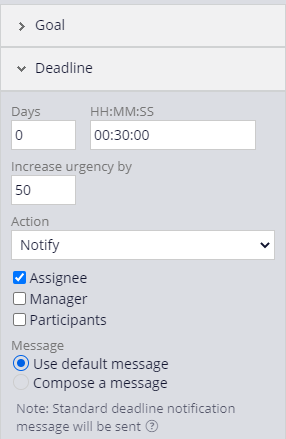
- Click Deadline to expand the deadline settings.
- Under Deadline, in the Days field, enter 0.
- In the HH:MM:SS field, enter 00:30:00.
- In the Increase Urgency by field, enter 50.
- Under the Action list, select the Assignee check box to send a message to the assignee.
- Click to complete the configuration of the service level agreement.
This Challenge is to practice what you learned in the following Module:
Disponibile nelle seguenti missioni:
Se hai problemi con la tua formazione, consulta ilPega Academy Support FAQs.
Want to help us improve this content?