
Enforcing Service-Level Agreements
1 Tarea
10 minutos
Principiante
Case Management
Constellation
Inglés
Escenario
Nota: The framework of this challenge uses the view-based Constellation architecture of Pega Platform. To practice this challenge on the traditional UI-based architecture Theme Cosmos, see the Enforcing service-level agreements version 8.7 challenge.
You are developing an application MyTown311 to capture and manage requests for city services. Ensure that service request repairs are scheduled promptly by adding a goal and deadline to the Schedule repair assignment.
The following table provides the credentials you need to complete the challenge.
| Role | User name | Password |
|---|---|---|
| Application Developer | author@mytown | pega123! |
Nota: Your practice environment may support the completion of multiple challenges. As a result, the configuration shown in the challenge walkthrough may not match your environment exactly.
Recorrido del Reto
Tareas detalladas
1 Configure a service level agreement for the Schedule repair step
- In the Pega instance for the challenge, enter the following credentials:
- In the User name field, enter author@mytown.
- In the Password field, enter pega123!.
- Click Case types > Service Request to display the Service Request case life cycle.
- Click the Schedule repair step to display the configuration pane on the right.
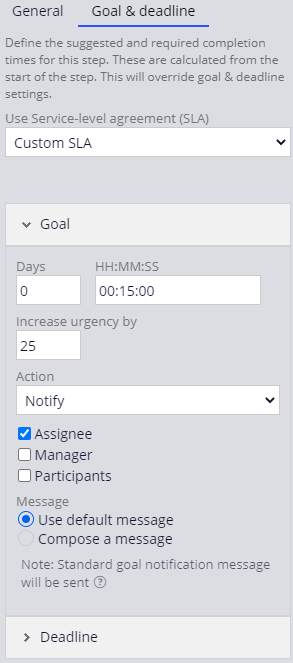
- In the configuration pane, click the Goal & deadline tab.
- From the Use Service-level agreement (SLA) list, select Custom SLA to display the SLA configuration settings.
- Under Goal, in the Days field, enter 0.
- In the HH:MM:SS field, enter 00:15:00.
- In the Increase urgency by field, enter 25.
- Under the Action list, select the Assignee check box to send a message to the assignee.
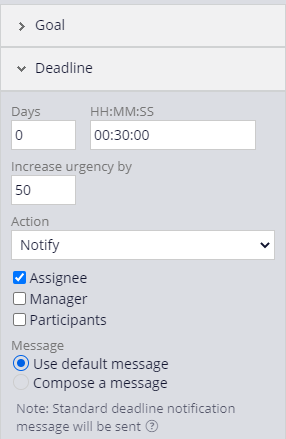
- Click Deadline to expand the deadline settings.
- Under Deadline, in the Days field, enter 0.
- In the HH:MM:SS field, enter 00:30:00.
- In the Increase urgency by field, enter 50.
- Under the Action list, select the Assignee check box to send a message to the assignee.
- Click to complete the configuration of the service level agreement.
Este Reto es para practicar lo aprendido en el siguiente Módulo:
If you are having problems with your training, please review the Pega Academy Support FAQs.
¿Quiere ayudarnos a mejorar este contenido?