
Approving work
1 タスク
5 分
初級
Case Management
Constellation
英語
シナリオ
補足: The framework of this challenge uses the view-based Constellation architecture of Pega Platform. To practice this challenge on the traditional UI-based architecture Theme Cosmos, see the Approving work version 8.7 challenge.
The MyTown services coordinator wants to review all the repairs performed as a result of a resident service request. If the repair is satisfactory, the case is approved and then resolved. If the repair is unsatisfactory, the case is rejected and returns to the Review stage so that a new repair can be scheduled. Upon returning to the Review stage, the case status is Open.
The following table provides the credentials you need to complete the challenge.
| Role | User name | Password |
|---|---|---|
| Application Developer | author@mytown | pega123! |
補足: Your practice environment may support the completion of multiple challenges. As a result, the configuration shown in the challenge walkthrough may not match your environment exactly.
チャレンジ ウォークスルー
詳細なタスク
1 Configure the Review repair step
補足: While the approval step is already created in this challenge instance, you can add an approval step to a process by clicking Step and selecting Approve/Reject.
- In the Pega instance for the challenge, enter the following credentials:
- In the User name field, enter author@mytown.
- In the Password field, enter pega123!.
- In the App Studio navigation pane, click Case types > Service Request to display the case life cycle.
- Click the Review repair step. The configuration pane is displayed on the right.
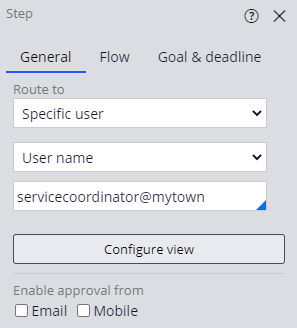
- In the General tab, confirm the Review repair Approve/Reject step is routed to servicecoordinator@mytown.
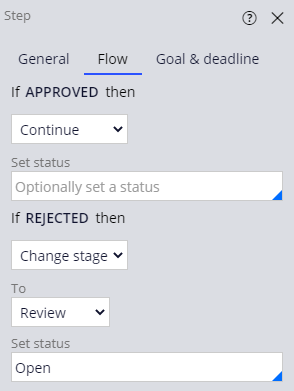
- In the Flow tab, confirm that the If APPROVED then list is set to Continue.
- Set the If REJECTED then list to Change stage to return the case to a different stage if the repair is rejected.
- Confirm that the To list is set to Review to return the case to the Review stage if the repair is rejected.
- In the Set status field, enter or select Open to change the case status if the repair is rejected.
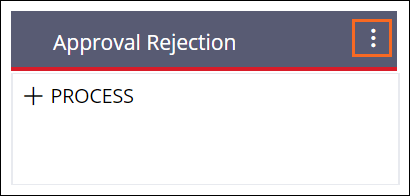
- In the Approval Rejection alternate stage, hover over the stage to reveal the More icon.
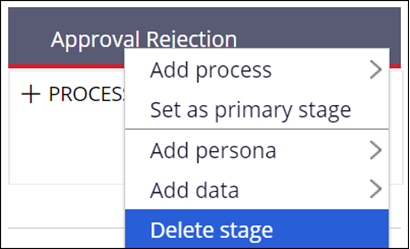
- Click More and then Delete stage to remove the alternate path from the case life cycle.
- Click Save to complete the configuration.
このチャレンジは、下記のモジュールで学習したことを実践するための内容です。
トレーニングを実施中に問題が発生した場合は、Pega Academy Support FAQsをご確認ください。