
Sending emails during Case processing
1 Tarefa
15 min
Beginner
Case Management
Constellation
Inglês
Scenario
The mayor of MyTown wants users to receive email updates when the reported issue is resolved.
Nota: The framework of this challenge uses the Constellation architecture of Pega Platform™. To practice this challenge on the Traditional UI architecture, see the Sending emails during Case processing version 8.7 challenge.
The following table provides the credentials you need to complete the challenge.
| Role | User name | Password |
|---|---|---|
| Application Developer | author@mytown | pega123! |
Nota: Your practice environment may support the completion of multiple challenges. As a result, the configuration shown in the challenge walkthrough may not match your environment exactly.
Challenge Walkthrough
Detailed Tasks
1 Configure the Send email Step
- In the Pega instance for the challenge, enter the following credentials:
- In the User name field, enter author@mytown.
- In the Password field, enter pega123!.
- In the App Studio navigation pane, click Case Types > Service Request to display the Case Life Cycle.
- In the Resolution Stage, select the Send repair confirmation Step to display the configuration pane on the right.
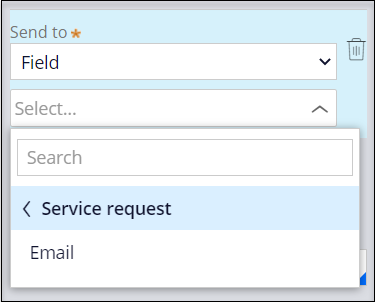
- In the configuration pane, from the first Send to list, select Field.
- From the second Send to list, select > Email to set the Send to value.
- In the Subject field, enter "Your service request has been completed!"
Nota: To display punctuation in text labels and fields such as the email subject line, enclose the text and punctuation in quotes.
- Under Message content, click Compose to display the Compose message window.

- In the rich text editor, enter the following text to compose the email message:
Hello!
We have addressed the issue <<.pyID>> that you logged on <<.pxCreateDateTime>>. Thank you for using the MyTown 311 app!Office of the Mayor,
MyTown
Dica: You can click the Insert property icon to select a property from a list. Select Case ID for .pyID and Create Date/Time for .pxCreateDateTime. If the Insert property icon is not visible, log out and log back in.
- Click Done to complete the message composition and display a message preview.
- Click Save to complete the Step configuration.
Nota: The number of configuration issues decreases from 1 to 0 and the configuration issues icon disappears.
Este Desafio serve para praticar o que você aprendeu nos seguintes Módulo:
Disponível nas seguintes missões:
If you are having problems with your training, please review the Pega Academy Support FAQs.
Quer nos ajudar a melhorar esse conteúdo?