
Pausing and resuming Case processing
Archived
1 Tarea
10 minutos
Principiante
Case Management
Inglés
Escenario
InsCorp is launching a roadside assistance service as a coverage option for automobile insurance policies. During the Service stage, the customer selects a service provider, and a Service child case is created to collect information from the service provider. To process the Assistance Request case and the Service case correctly, enforce a dependency to pause and resume case processing on the Assistance Request case when the Service case meets the conditions that you define.
The following table provides the credentials you need to complete the challenge.
| Role | User name | Password |
|---|---|---|
| Application Developer | author@gogoroad | pega123! |
Nota: Your practice environment may support the completion of multiple challenges. As a result, the configuration shown in the challenge walkthrough may not match your environment exactly.
Recorrido del Reto
Tareas detalladas
1 Create a Wait automation
- In the App Studio navigation pane, click Case types > Assistance Request to open the Assistance Request case type.
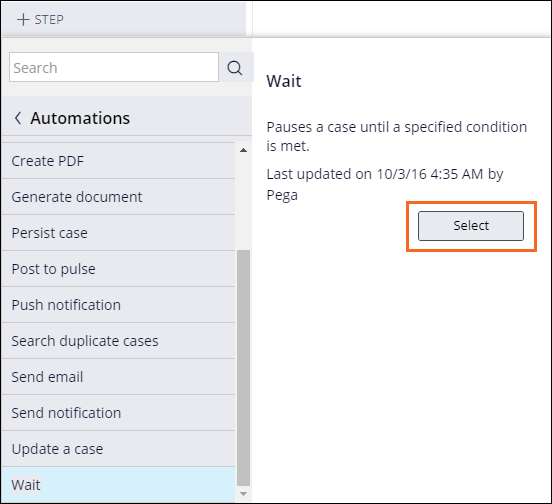
- In the Create Service case process, click Step > More > Automations > Wait > Select to add a step that pauses case processing.
- In the step, enter Wait for service completion.
- In the Step properties pane on the right, in the Wait for (Case type) list, select Service to set a dependency on the Service case.
Nota: In this challenge, the Assistance Request case type creates a single Service child case, and there is no difference between the Any and All options.
- Click To be resolved to pause the Assistance Request case until the Service case is resolved.
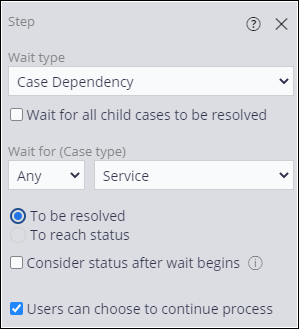 Nota: The Users can choose to continue process check box is selected by default.
 - In the upper right, click Save to complete the Assistance Request workflow.