
Adding optional Actions to a workflow
Archived
1 Tarea
5 minutos
Principiante
Case Management
Inglés
Escenario
InsCorp wants to ensure that customers can cancel service requests at any time. Add the Cancel request process as a case-wide optional action to cancel assistance requests. Update the process to advance a case to the Cancellation stage if the user elects to cancel their assistance request.
The following table provides the credentials you need to complete the challenge.
| Role | User name | Password |
|---|---|---|
| Application Developer | author@gogoroad | pega123! |
Nota: Your practice environment may support the completion of multiple challenges. As a result, the configuration shown in the challenge walkthrough may not match your environment exactly.
Recorrido del Reto
Tareas detalladas
1 Add the Cancel request process as a case wide action
- In the navigation pane of App Studio, click Case types > Assistance Request to open the Assistance Request case type.
- In the upper right of the Workflow tab, click Optional actions to display existing optional actions.
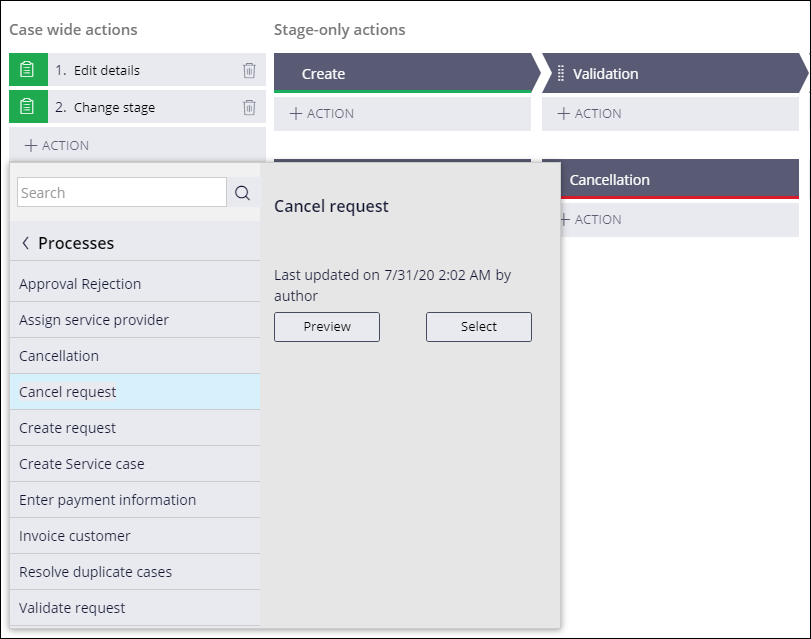
- In the Case wide actions section, click Action > More > Processes to display a list of existing processes.
- From the list of processes, click Cancel request > Select to display the process in the list of case wide actions.
- In the upper right, click Save to apply changes to the Assistance Request case type.